FC 26 Game Settings let you tailor how the game looks, sounds, and behaves across all modes. Browse the menus with L2/R2 (PlayStation) or LT/RT (Xbox), then tweak each tab below.
You can access the FC 26 Game Settings from the main menu. Navigate to the
Settings icon ⚙️ located in the top-right corner of the screen and select
Game Settings. From here, you can browse through all the available tabs:
Each tab contains its own set of options and sliders, allowing you to fully customize your experience both
on and off the pitch. Changes can be restored anytime by selecting Restore Defaults.
Gameplay
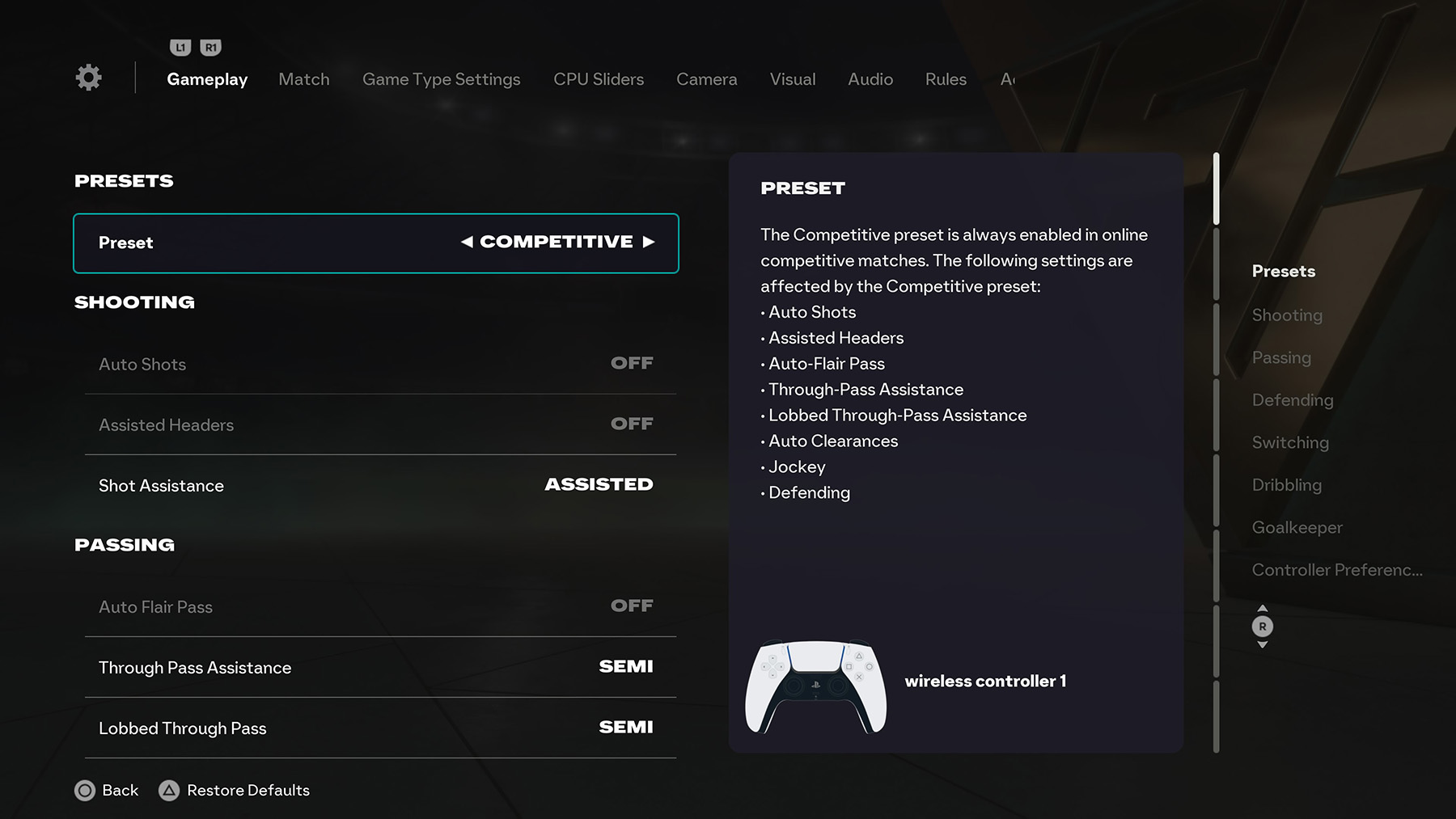
Presets
- Preset: Default, Competitive.
- Competitive preset (forced in online competitive) adjusts:
- Auto Shots
- Assisted Headers
- Auto-Flair Pass
- Through-Pass Assistance
- Lobbed Through-Pass Assistance
- Auto Clearances
- Jockey
- Defending
Shooting
- Auto Shots: On, Off.
- Assisted Headers: On, Off.
- Shot Assistance: Assisted, Precision, Manual.
Passing
- Auto Flair Pass: On, Off.
- Through Pass Assistance: Semi, Assisted, Manual.
- Lobbed Through Pass: Semi, Assisted, Manual.
- Ground Pass Assistance: Semi, Assisted, Manual.
- Cross Assistance: Semi, Assisted, Manual.
- Lob Pass Assistance: Semi, Assisted, Manual.
- Pass Receiver Lock: Late, Animation Start, Power Up.
- Precision Pass Sensitivity: Normal, High.
Defending
- Auto Clearances: On, Off.
- Clearance Assistance: Classic, Directional.
- Jockey: Assisted, Manual.
- Defending: Legacy, Advanced, Tactical.
- Professional Fouls: On, Off.
- Pass Block Assistance: On, Off.
Switching
- Auto Switching: Manual, Only on Loose Balls, Only on Air Balls, On Air and Loose Balls, Automatic.
- Auto Switching Move Assistance: None, Low, High.
- Right Stick Switching: Adaptive, Classic, Player Rotation.
- Right Stick Switching Reference: Player Relative, Ball Relative.
- Right Stick Switching Sensitivity: 0–10.
- Next Player Switching: Classic, Closest to Ball, Goal Side.
- Reaction Time Calibration: On, Off.
- Reaction Time Calibration Sensitivity: 0–10.
Dribbling
- Simplified Skill Moves: On, Off.
Goalkeeper
- Save Assistance: Manual, Semi, Assisted.
- Camera Pan Speed: Default, Slow, Fast.
Controller Preferences
- Analog Sprint: On, Off.
- Trigger Effect: On, Off.
- User Vibration Feedback: Classic, Enhanced.
Match
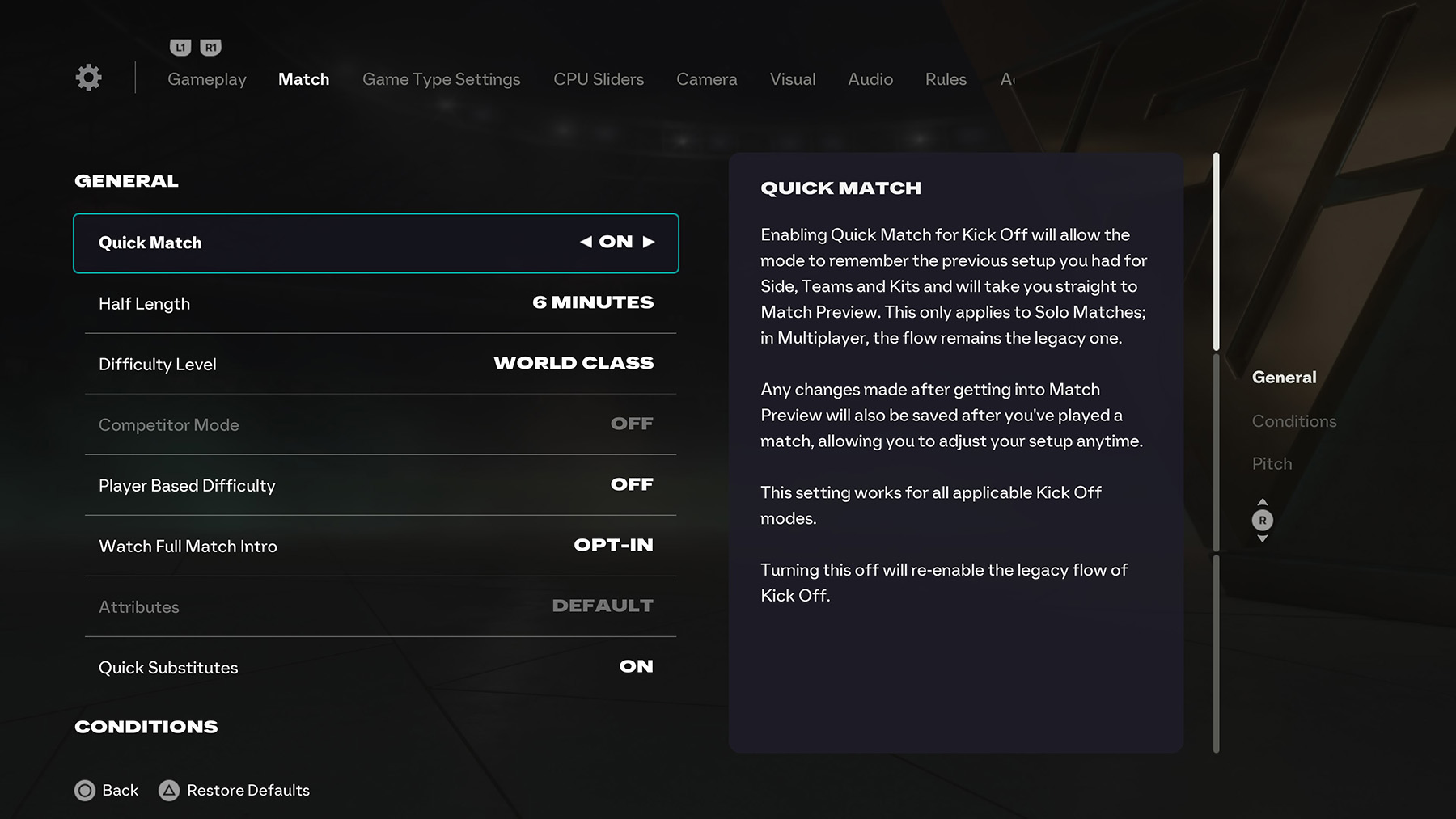
General
- Quick Match: On, Off. (Saves previous Kick-Off setup for Solo and jumps to Match Preview.)
- Half Length: 3, 4, 5, 6, 7, 8, 9, 10, 15, 20 minutes.
- Difficulty Level: Beginner, Amateur, Semi-Pro, Professional, World Class, Legendary.
- Competitor Mode: On, Off. (Enhanced CPU opponent; available on higher difficulties.)
- Player Based Difficulty: On, Off. (Star CPU players have enhanced intelligence.)
- Watch Full Match Intro: Always, Opt-in, Never.
- Attributes: Default, Classic.
- Quick Substitutes: On, Hide.
Conditions
- Stadium: Select from available stadiums.
- Match Conditions: Custom, Random.
- Season: Summer, Autumn/Fall, Winter, Spring.
- Dynamic Time of Day: Choose a time (e.g., 10:00 PM). Optional fixed Time of Day when Dynamic is off.
- Weather: Clear, Partly Clear, Overcast, Rain (and other venue-specific conditions).
Pitch
- Ball: Random, Default, plus additional licensed balls.
Game Type Settings
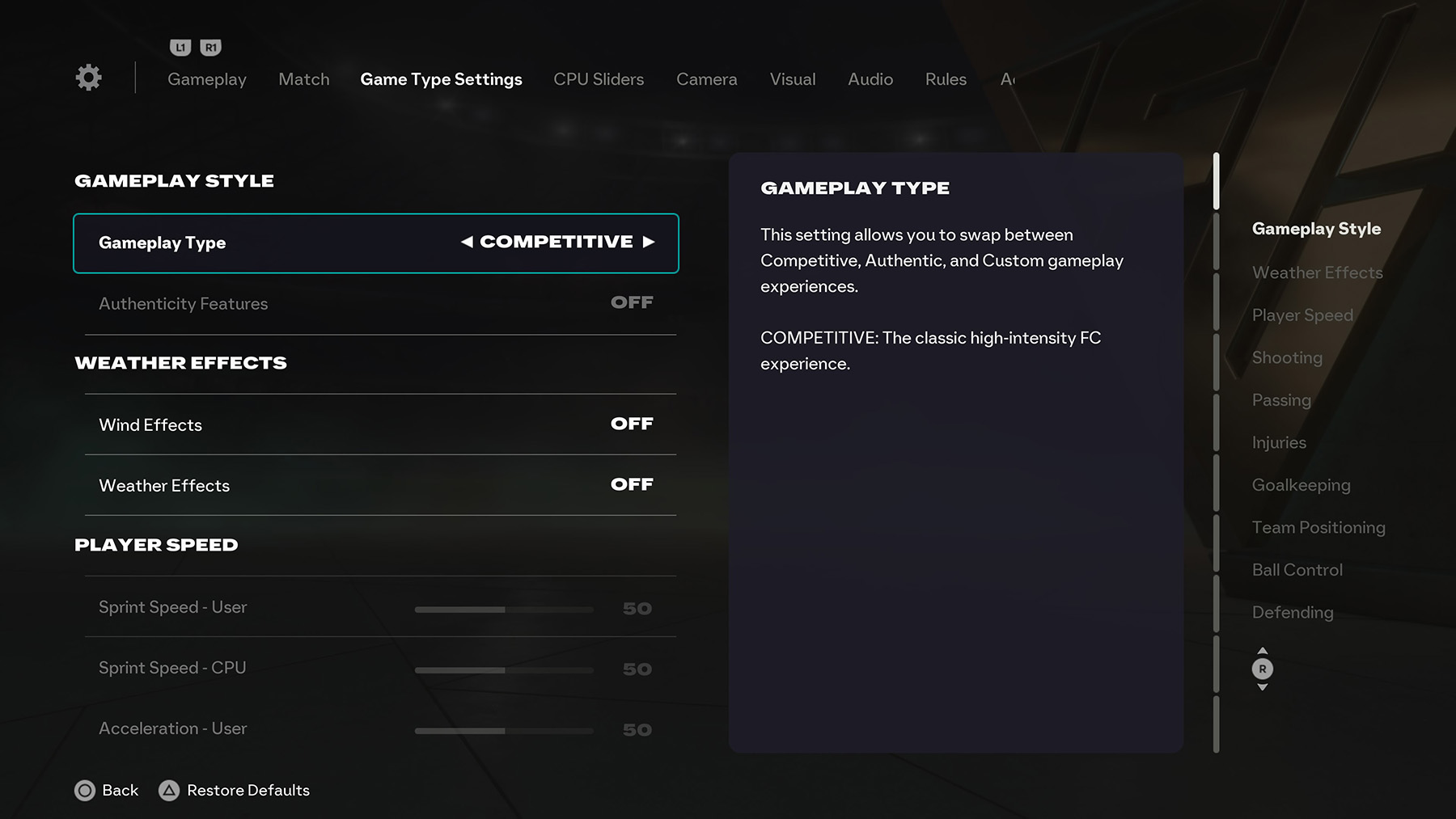
Gameplay Style
- Gameplay Type: Competitive, Authentic, Custom.
- Authenticity Features: On, Off.
Weather Effects
- Wind Effects: Off, Low, Medium, High.
- Weather Effects: On, Off.
Player Speed
- Sprint Speed – User: 1–99.
- Sprint Speed – CPU: 1–99.
- Acceleration – User: 1–99.
- Acceleration – CPU: 1–99.
Shooting
- Shot Error – User: 1–99.
- Shot Error – CPU: 1–99.
- Shot Speed – User: 1–99.
- Shot Speed – CPU: 1–99.
- Header Shot Error – User: 1–99.
- Header Shot Error – CPU: 1–99.
Passing
- Pass Error – User: 1–99.
- Pass Error – CPU: 1–99.
- Pass Speed – User: 1–99.
- Pass Speed – CPU: 1–99.
- Header Pass Error – User: 1–99.
- Header Pass Error – CPU: 1–99.
Injuries
- Injury Frequency – User: 1–99.
- Injury Frequency – CPU: 1–99.
- Injury Severity – User: 1–99.
- Injury Severity – CPU: 1–99.
Goalkeeping
- Goalkeeper Ability – User: 1–99.
- Goalkeeper Ability – CPU: 1–99.
Team Positioning
- Positioning: Marking – User: 1–99.
- Positioning: Marking – CPU: 1–99.
- Positioning: Run Frequency – User: 1–99.
- Positioning: Run Frequency – CPU: 1–99.
- Positioning: Line Height – User: 1–99.
- Positioning: Line Height – CPU: 1–99.
- Positioning: Line Length – User: 1–100.
- Positioning: Line Length – CPU: 1–99.
- Positioning: Line Width – User: 1–99.
- Positioning: Line Width – CPU: 1–99.
- Positioning: Fullback Positioning – User: 1–99.
- Positioning: Fullback Positioning – CPU: 1–99.
Ball Control
- Power Bar – User: 1–99.
- First Touch Control Error – User: 1–99.
- First Touch Control Error – CPU: 1–99.
- Intercept Error – User: 1–99.
- Intercept Error – CPU: 1–99.
- Ball Deflection Error – User: 1–99.
- Ball Deflection Error – CPU: 1–99.
Defending
- Tackle Assistance – User: 1–99.
- Tackle Assistance – CPU: 1–99.
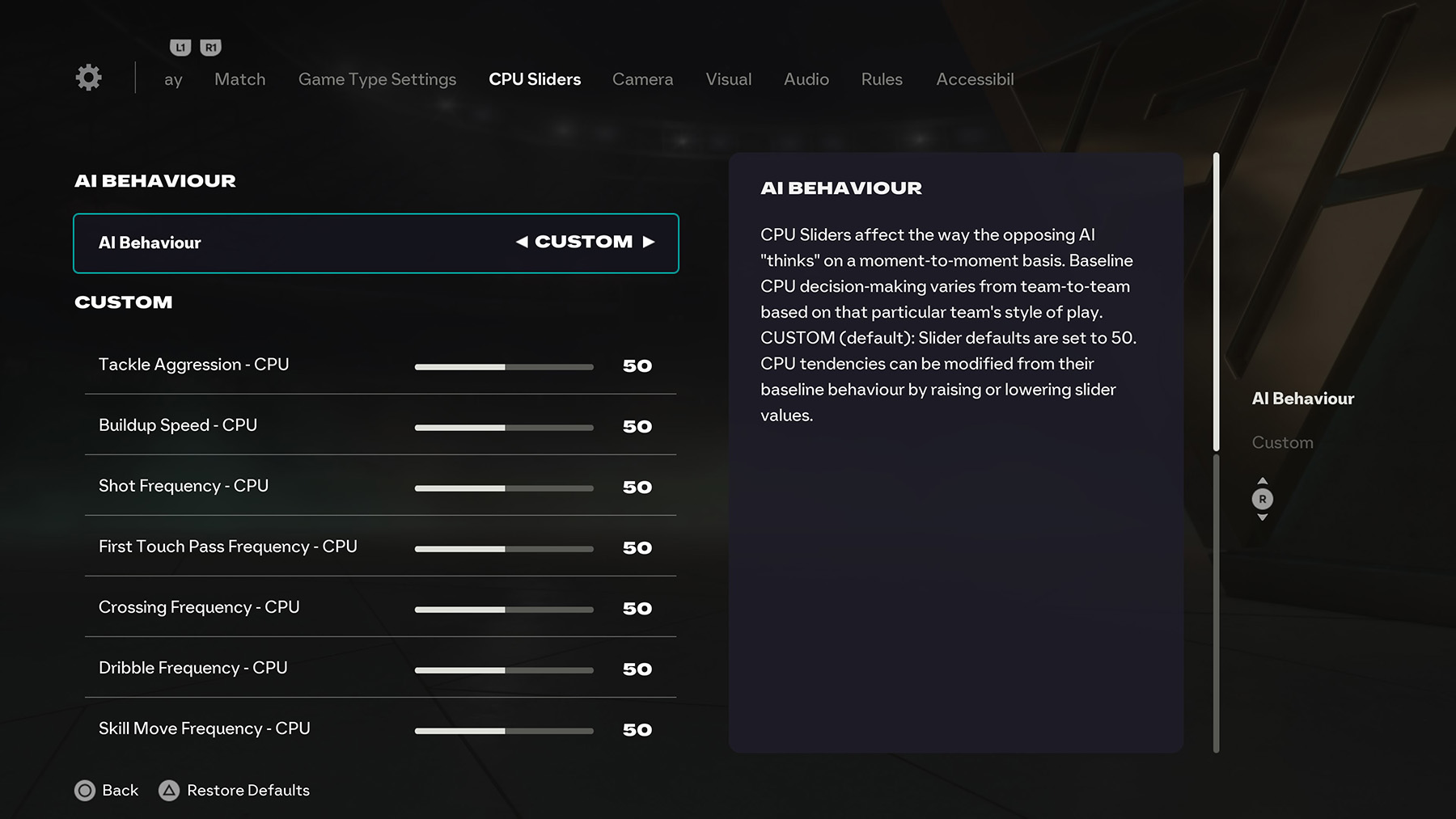
CPU Sliders
AI Behaviour
- AI Behaviour: Custom, Tactical, Dynamic.
- CPU Sliders affect how the AI “thinks” on a moment-to-moment basis. Defaults are set to 50. Adjust sliders to increase or decrease CPU tendencies.
Custom Sliders
- Tackle Aggression – CPU: 1–99. Controls CPU tackling intensity.
- Buildup Speed – CPU: 1–99. Determines pace of CPU buildup play.
- Shot Frequency – CPU: 1–99. Adjusts how often CPU attempts shots.
- First Touch Pass Frequency – CPU: 1–99. Sets how frequently CPU passes instantly upon receiving.
- Crossing Frequency – CPU: 1–99. Governs CPU tendency to cross the ball.
- Dribble Frequency – CPU: 1–99. Controls how often CPU attempts dribbles.
- Skill Move Frequency – CPU: 1–99. Adjusts how frequently CPU uses skill moves.
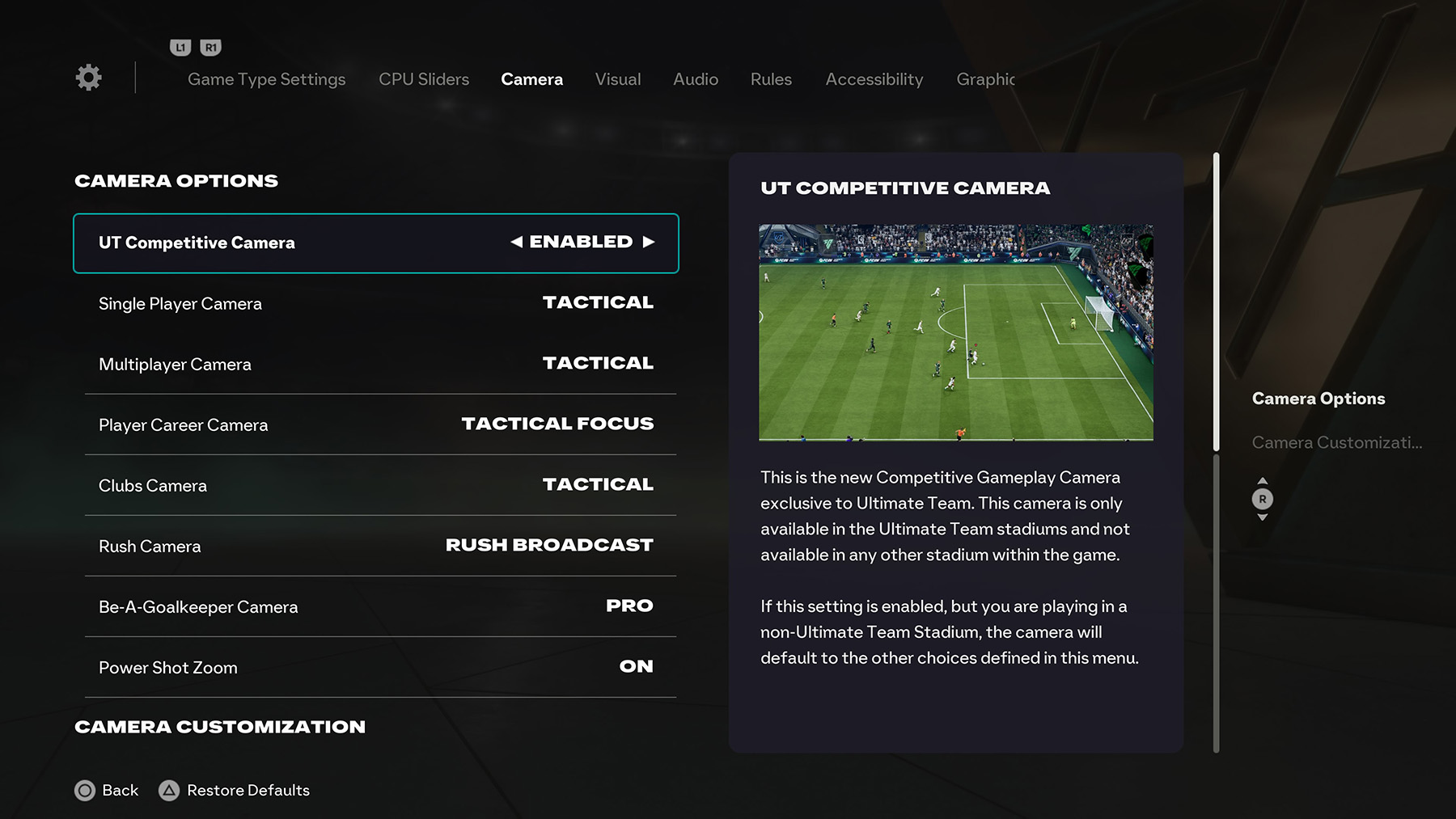
Camera
Camera Options
- UT Competitive Camera: Enabled, Disabled. Exclusive to Ultimate Team stadiums, defaults back if unavailable.
- Single Player Camera: Broadcast, Tele, Tele Broadcast, Co-op, Classic, Dynamic, End to End, Tactical.
- Multiplayer Camera: Same options as above (separate setting for local multiplayer).
- Player Career Camera: Default, Pro, Tactical Focus (tailored for Player Career mode).
- Clubs Camera: Broadcast, Tele, Tele Broadcast, Co-op, Classic, Dynamic, End to End, Tactical.
- Rush Camera: Rush Broadcast (special camera designed for Rush mode).
- Be-A-Goalkeeper Camera: Pro, Tele Broadcast, Dynamic, End to End.
- Power Shot Zoom: On, Off (zooms in during Power Shots).
Camera Customization
- Custom Camera Settings: Default, Custom.
- Height: 0–20 (default ~10). Adjusts vertical angle of view.
- Zoom: 0–20 (default ~10). Controls how close/far the camera is.
- Pro Camera Zoom: 0–20. Custom zoom specifically for Pro Camera.
- Pro Camera Speed: 0–20. Controls tracking speed of Pro Camera.
- Pro Camera Swing: 0–20. Adjusts lateral swing of Pro Camera.
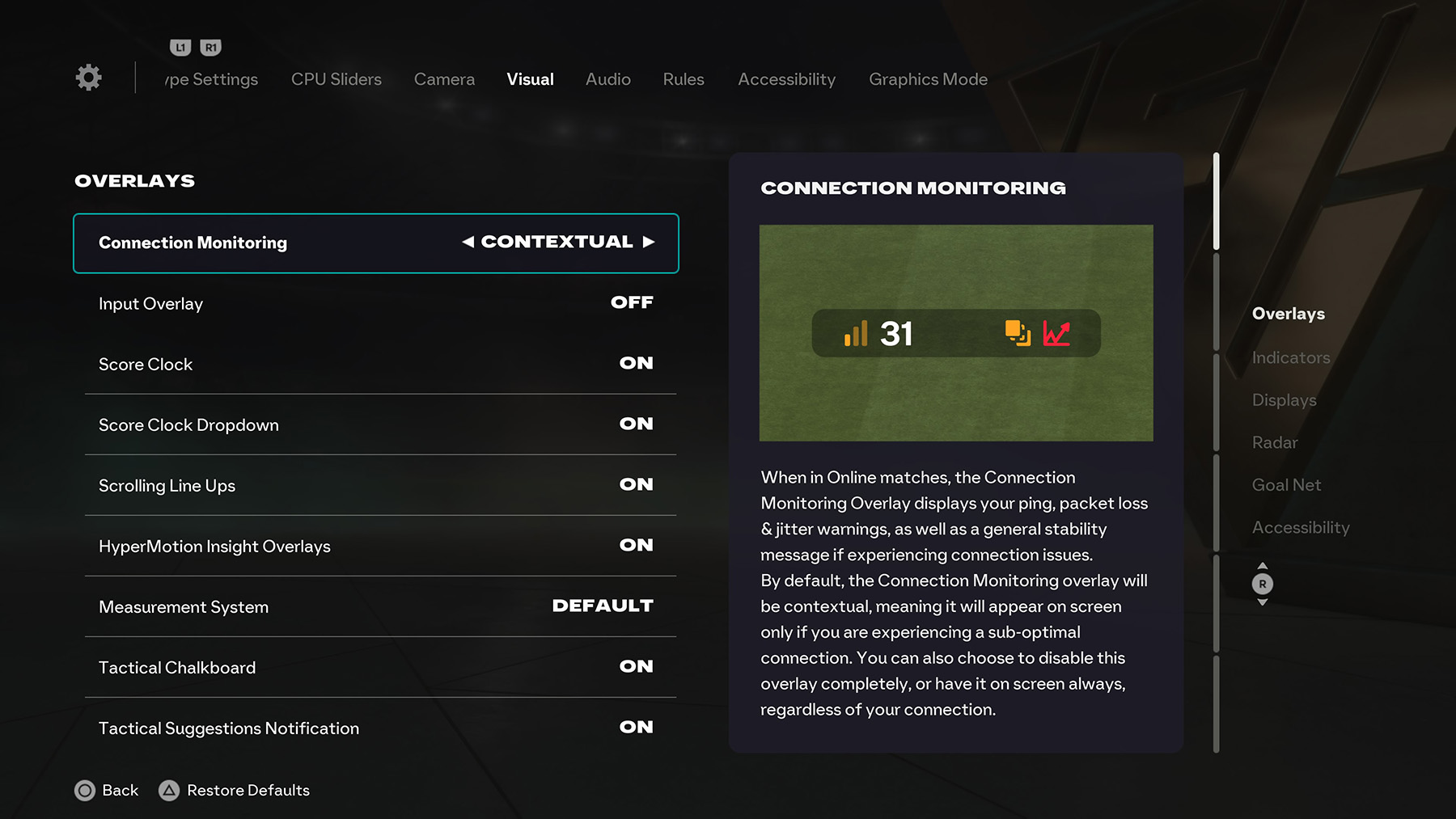
Visual
Overlays
- Connection Monitoring: Off, Contextual, Always On. Displays ping, packet loss, jitter.
- Input Overlay: On, Off. Shows controller input visualization.
- Score Clock: On, Off. Toggles scoreboard timer.
- Score Clock Dropdown: On, Off. Adds dropdown info under the scoreboard.
- Scrolling Line Ups: On, Off. Shows lineups scrolling at match start.
- HyperMotion Insight Overlays: On, Off. Displays real-time animation insights.
- Measurement System: Metric, Imperial, Default.
- Tactical Chalkboard: On, Off. Adds tactical analysis visuals.
- Tactical Suggestions Notification: On, Off. Displays in-match tactical prompts.
Indicators
- Footedness Icons: On, Off. Shows strong/weak foot indicators.
- Skill Moves Rating: On, Off.
- PlayStyles+ Icons: On, Off.
- UT Objective Gameplay Notifications: On, Off.
- Player Name Bar: Enabled, Disabled.
- Overhead Player Info: Player Name, Disabled.
- Player Indicator Size: Small, Default, Large.
- Player Indicator Fade: On, Off. Fades indicators based on stamina loss.
- Teammate Contain Indicator: On, Off.
- PlayStyles+ Overhead Indicators: On, Off.
- Next Player Switch Indicator: On, Off.
- Player Based Difficulty Indicator: On, Off.
- Online ID Indicator: Always, Fade, Off.
Displays
- Hold to Skip: On, Off.
- Precision Pass Visuals: On, Off.
- Precision Shot Visuals: On, Off.
- Underfoot Player Highlight: Off, Play on Stoppage. Highlights under controlled player.
- Communication System: On, Off.
- AR Coach in Rush: On, Hide.
- Ping System: On, Off.
Radar
- Radar: 2D, 3D, Off.
- User Radar Colour: Default, Custom colors.
- Opponent Radar Colour: Default, Custom colors.
Goal Net
- Net Tension: Loose, Default, Tight.
- Net Shape: Default, Square, Rounded.
- Net Meshing: Default, Tight, Loose.
Accessibility
- Player Shadows: On, Off.
- Stadium Shadows: On, Off.
- Camera Shake Visuals: On, Off.
- POV Camera Scenes: On, Off.
- Colour Blindness: Default, Protanopia, Deuteranopia, Tritanopia.
- Intensity: 0–10. Adjusts effect strength.
- Brightness: 0–10.
- Contrast: 0–10.
- High Contrast Mode: On, Off.
- Main Menu Video: On, Off.
- Subtitles: On, Off.
- Subtitles Text Size: Small, Default, Large.
- Subtitles Text Colour: White, Yellow, Custom.
- Subtitles Drop Shadow: On, Off.
- Subtitles Background: On, Off.
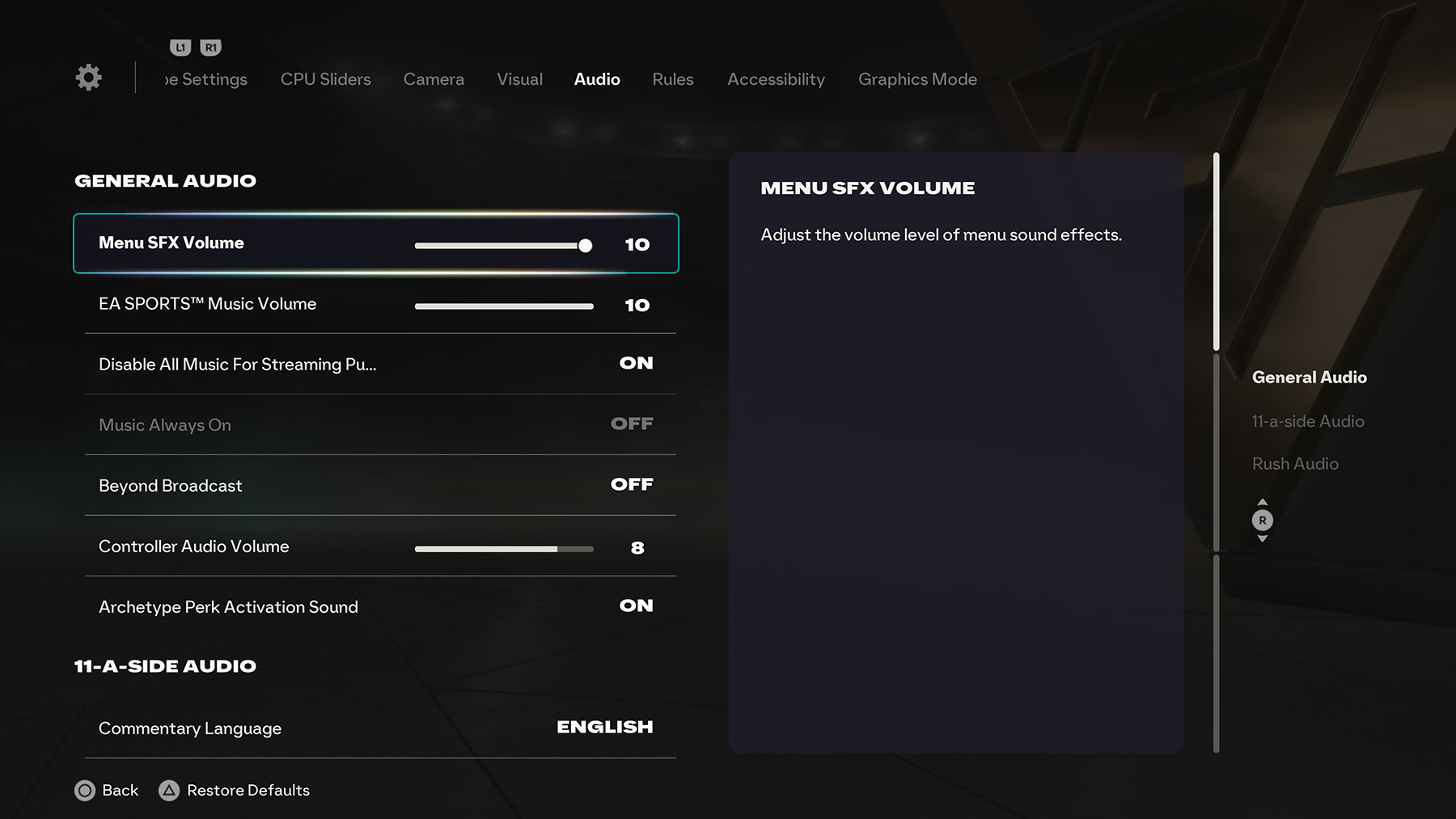
Audio
General Audio
- Menu SFX Volume: 0–10.
- EA SPORTS™ Music Volume: 0–10.
- Disable All Music For Streaming Purposes: On, Off.
- Music Always On: On, Off.
- Beyond Broadcast: On, Off.
- Controller Audio Volume: 0–10.
- Archetype Perk Activation Sound: On, Off.
11-a-side Audio
- Commentary Language: Multiple languages available (default: English).
- Commentary Team: Default, Customize.
- Sideline Commentator: On, Off.
- Commentary Volume: 0–10.
- Stadium Ambience Volume: 0–10.
- Disable Critical Commentary: On, Off.
Rush Audio
- Commentary Language: Multiple languages available (default: English).
- Commentator: Randomize, Selectable options.
- Commentary Volume: 0–10.
- Gameplay Music Volume: 0–10.
- General Ambience Volume: 0–10.
Rules
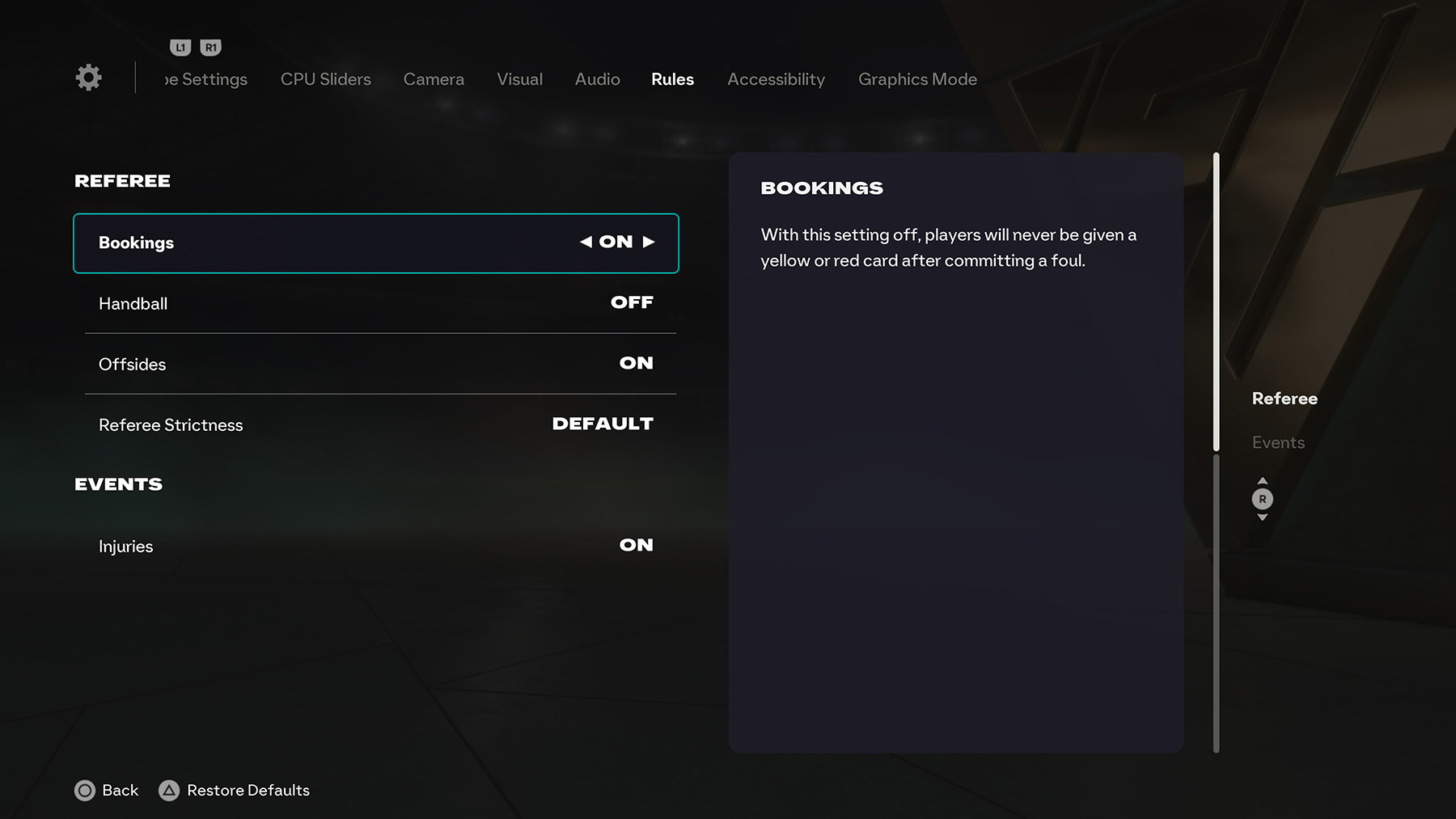
Referee
- Bookings: On, Off. (If Off, no yellow/red cards are issued.)
- Handball: On, On (GK Only), On (except penalties), Off.
- Offsides: On, Off.
- Referee Strictness: Very Lenient, Lenient, Default, Strict, Very Strict.
Events
- Injuries: On, Off.
Accessibility
Visual Adjustments
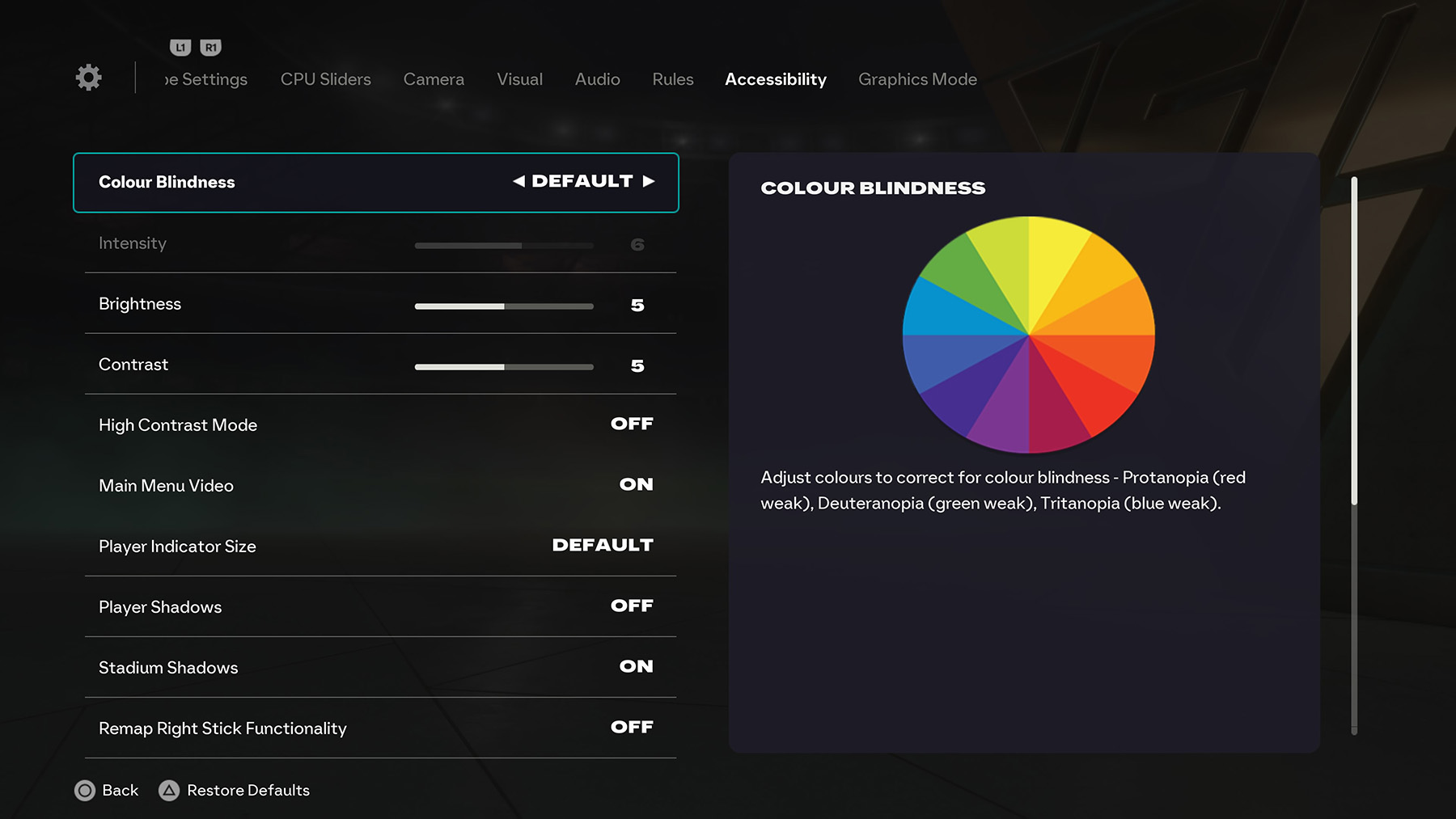
- Colour Blindness: Default, Protanopia (red weak), Deuteranopia (green weak), Tritanopia (blue weak).
- Intensity: 0–10 (adjust effect strength).
- Brightness: 0–10 (default 5).
- Contrast: 0–10 (default 5).
- High Contrast Mode: On, Off.
Interface Options
- Main Menu Video: On, Off.
- Player Indicator Size: Default, Small, Large.
- Subtitles: On, Off.
- Subtitles Text Size: Default, Large.
- Subtitles Text Colour: White, Yellow.
- Subtitles Drop Shadow: On, Off.
- Subtitles Background: On, Off.
Visual Effects
- Player Shadows: On, Off.
- Stadium Shadows: On, Off.
Controller Remapping
- Remap Right Stick Functionality: On, Off.
- Remap L1/R1 Buttons and L2/R2 Buttons: On, Off.
Gameplay Assistance
- Simplified Skill Moves: On, Off (allows advanced moves with simplified inputs).
Graphics Mode
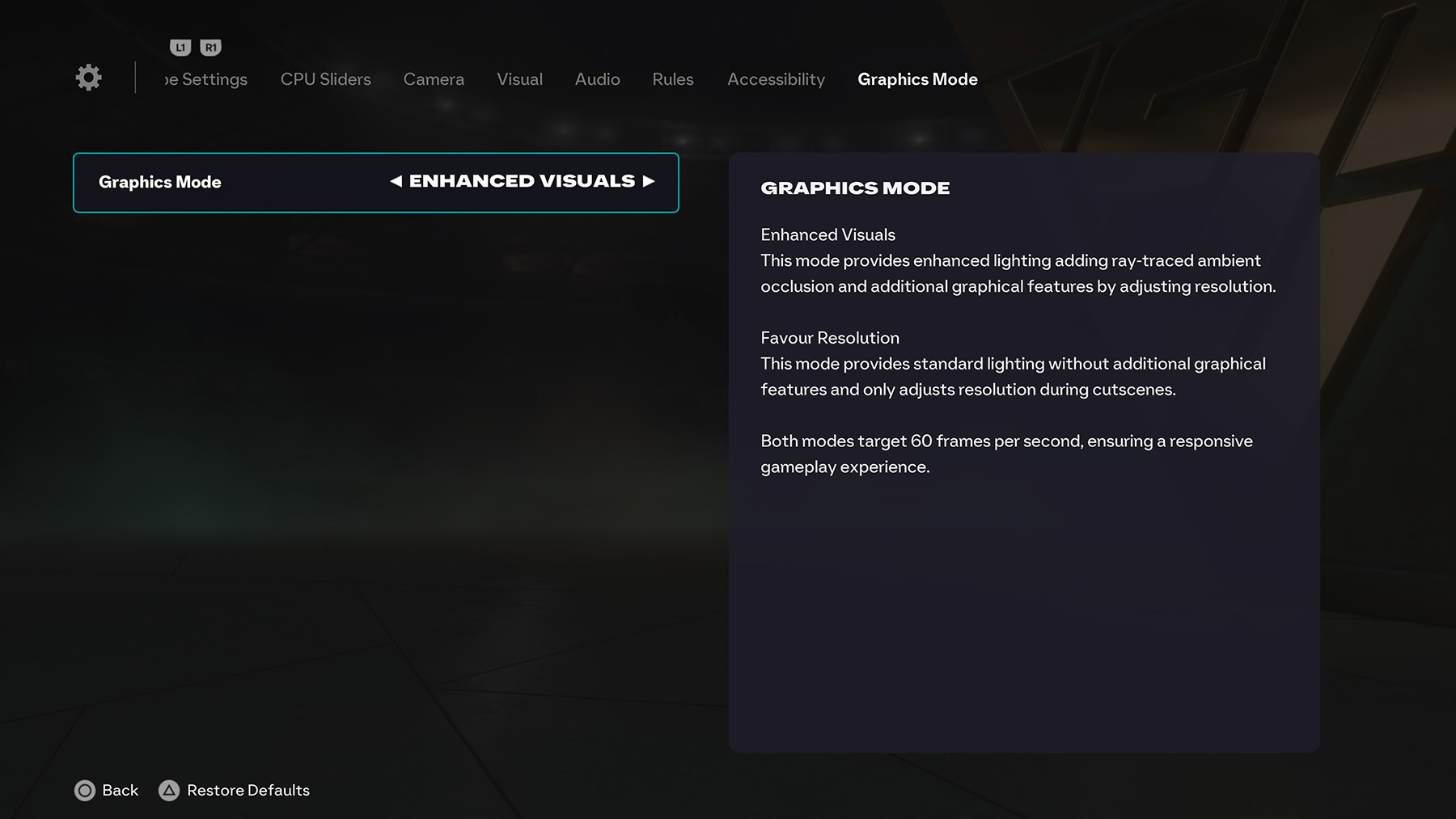
- Enhanced Visuals: Provides enhanced lighting with ray-traced ambient occlusion and additional graphical effects by dynamically adjusting resolution.
- Favour Resolution: Uses standard lighting, no extra graphical features, and adjusts resolution during cutscenes.
⚙️ Both modes target 60 FPS to ensure smooth gameplay.
FAQ
Q: Can I change settings during a match?
Yes, you can pause the game and access Game Settings to adjust options such as camera, audio, and rules. Some advanced options (like CPU sliders) are only adjustable from the main menu.
Q: Do settings carry over between modes?
Most settings (e.g., gameplay assists, camera preferences) are global and apply across modes. However, certain modes like Ultimate Team may enforce competitive presets that override your custom setup.
Q: What does “Restore Defaults” do?
This resets the selected tab back to its factory default settings without affecting the other tabs.
Q: Are competitive presets mandatory online?
Yes, in online competitive modes the Competitive Preset is enforced to ensure a fair playing field. Offline and casual modes allow full customization.
Q: Do visual and graphics settings affect performance?
Yes, choosing Enhanced Visuals may improve lighting and detail but can lower resolution during cutscenes. Both modes target 60 FPS for smooth gameplay.
Have more questions? Drop them in the comment form below or check out our full FC 26 FAQ section for more answers.
Comments