The Camera tab in FC 26 lets you choose how the match is framed and how much of the pitch you see.
Pick a base camera that fits your playstyle, then fine-tune height/zoom and optional effects like Power Shot Zoom for the perfect view.
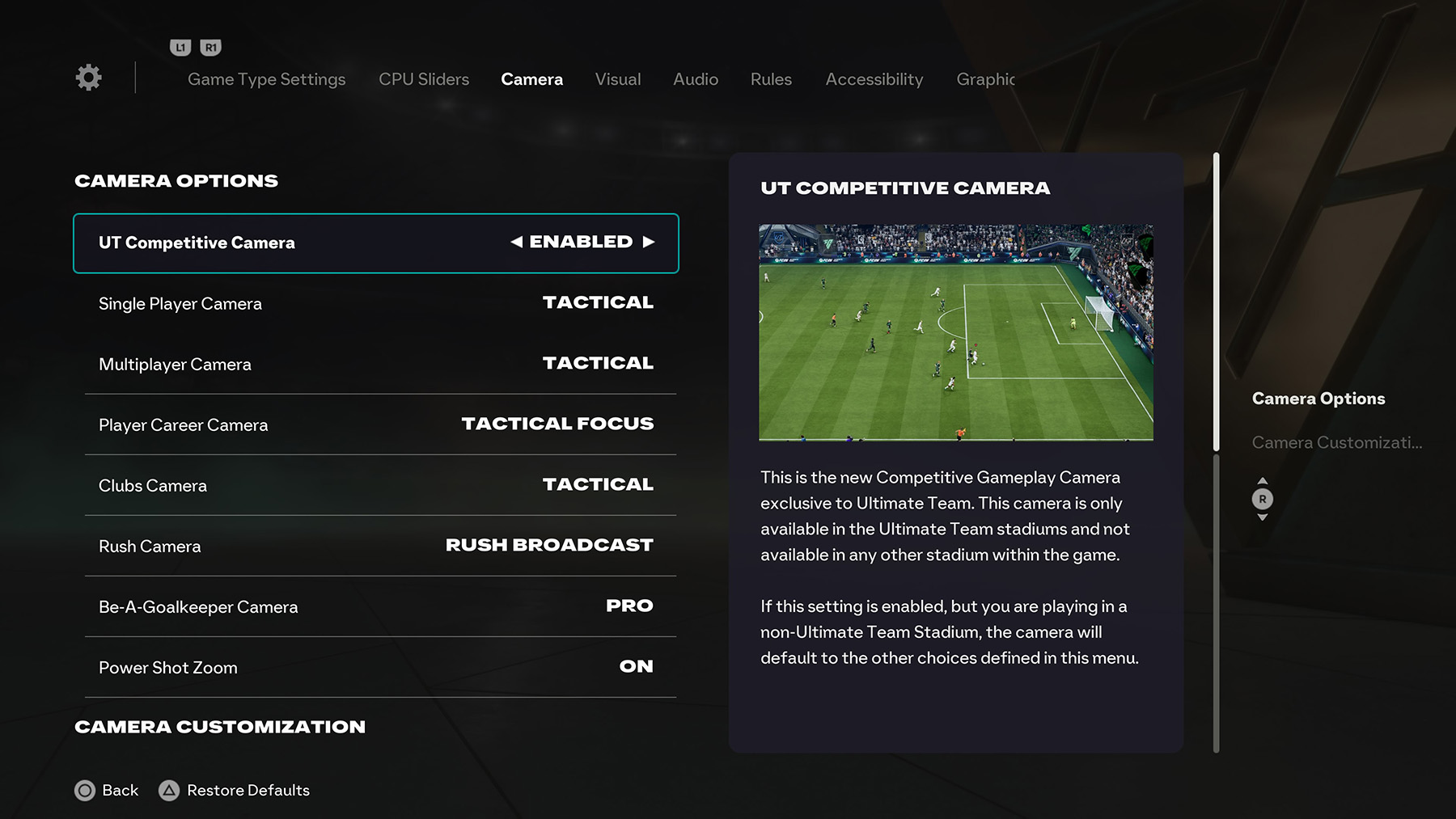
Where You Can Change Camera Settings
Camera options in FC 26 can be adjusted globally or on a match-by-match basis across different modes:
- Ultimate Team (FUT): Camera can be set in Game Settings, but online play enforces UT Competitive Camera, if enabled.
- Main Menu: Settings → Game Settings → Camera (sets your global default).
- Kick-Off: Adjust from the pre-match setup screen before starting a game.
- Career Mode: Change camera from Game Settings in the pause menu or before matches.
- Pro Clubs: Accessible in the pause menu or match lobby settings.
- Rush Mode: Adjust Rush-specific camera options in Game Settings.
- In-Game Pause Menu: Press pause during any match → Game Settings → Camera.
Camera Types
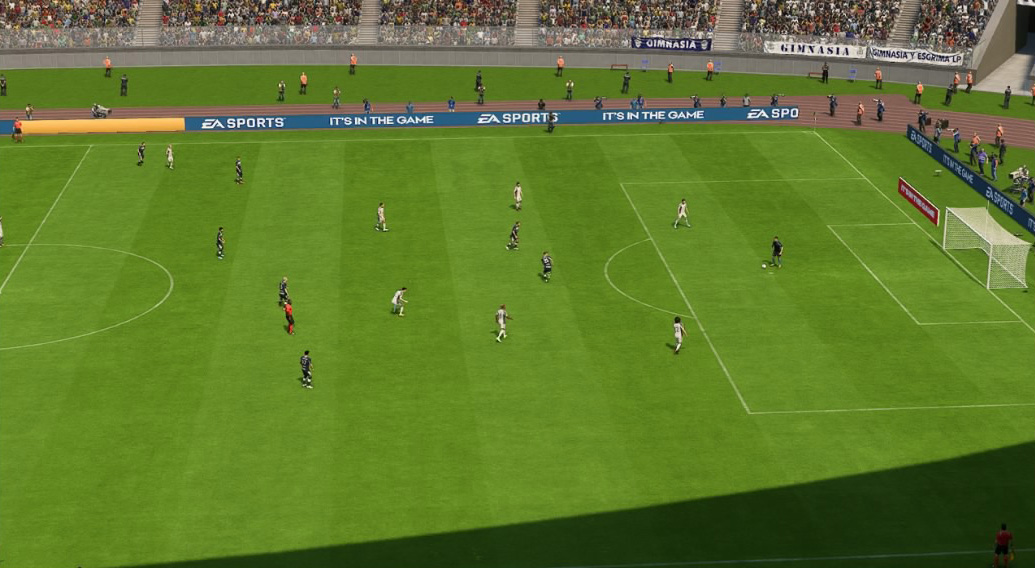
TATICAL
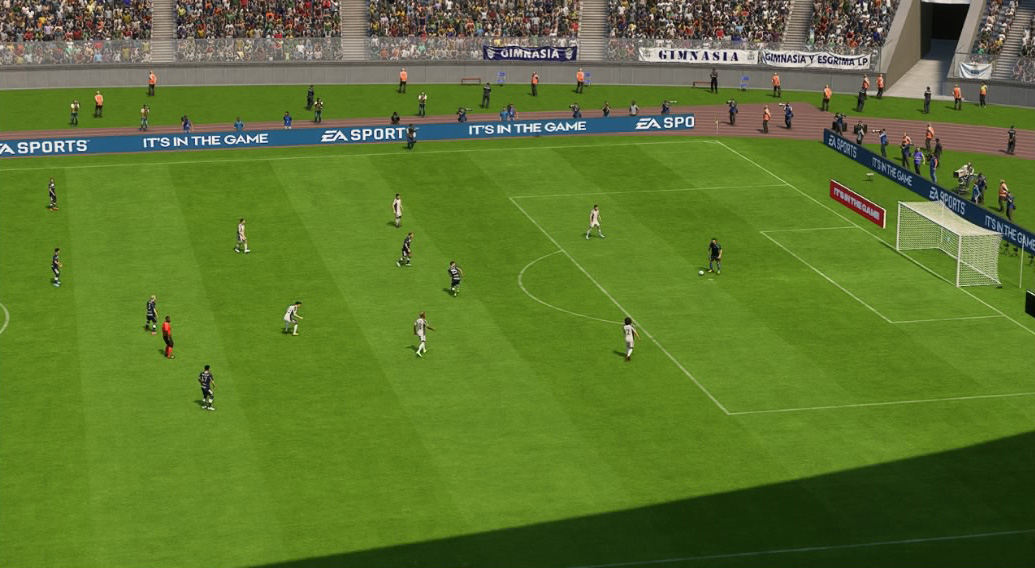
EA SPORTS GAMECAM
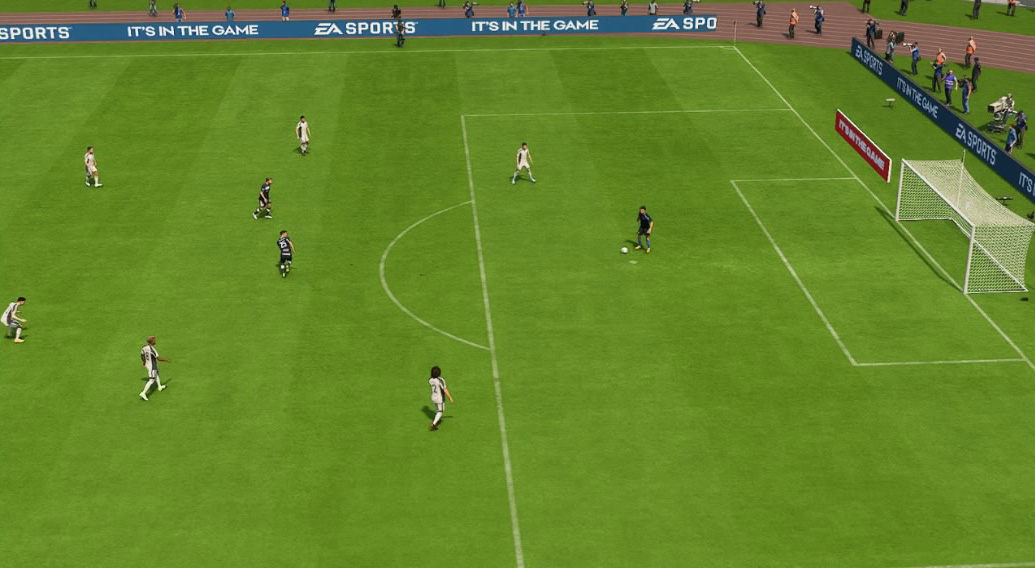
TELEBROADCAST
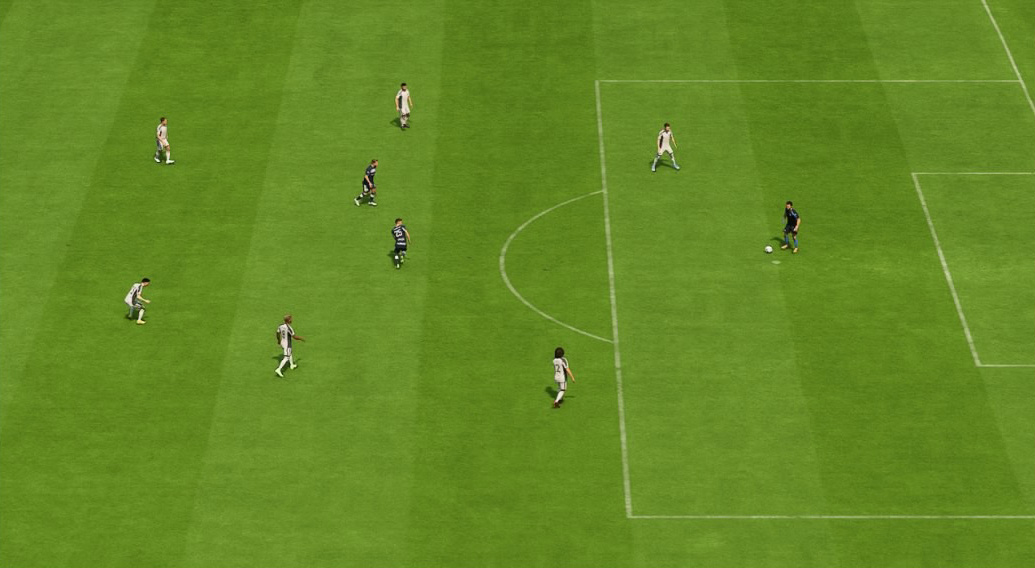
TELE
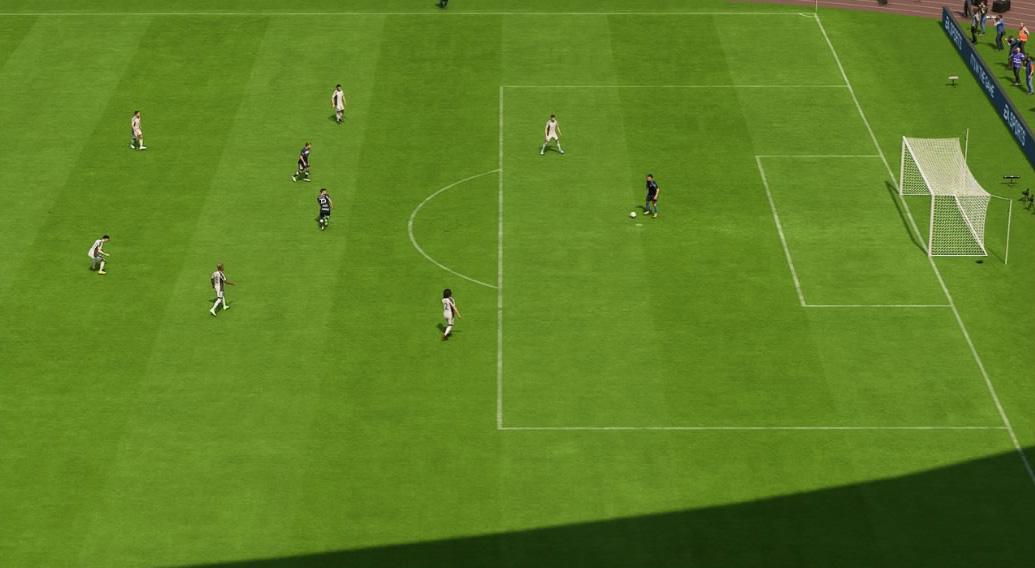
CO-OP
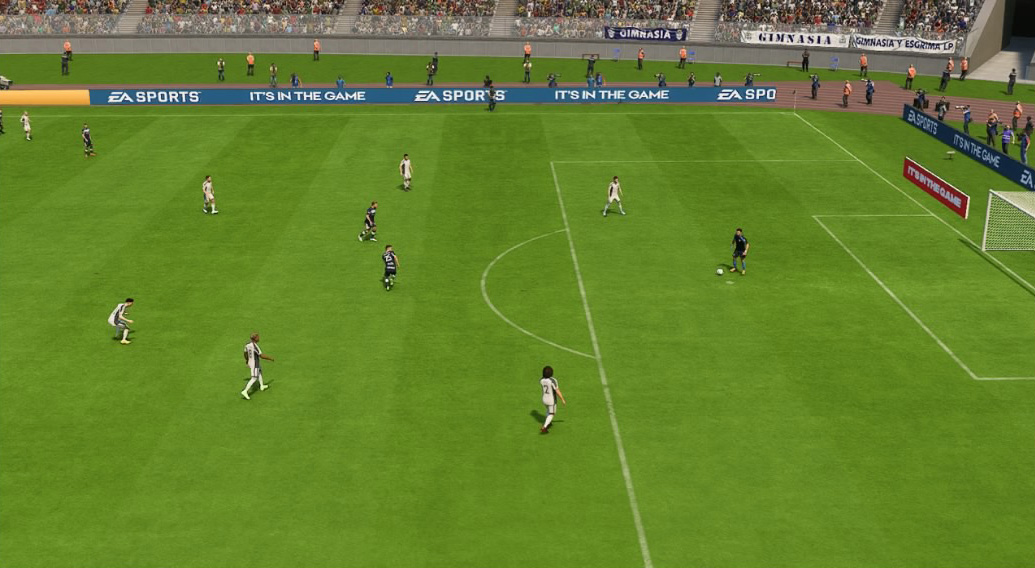
CLASSIC
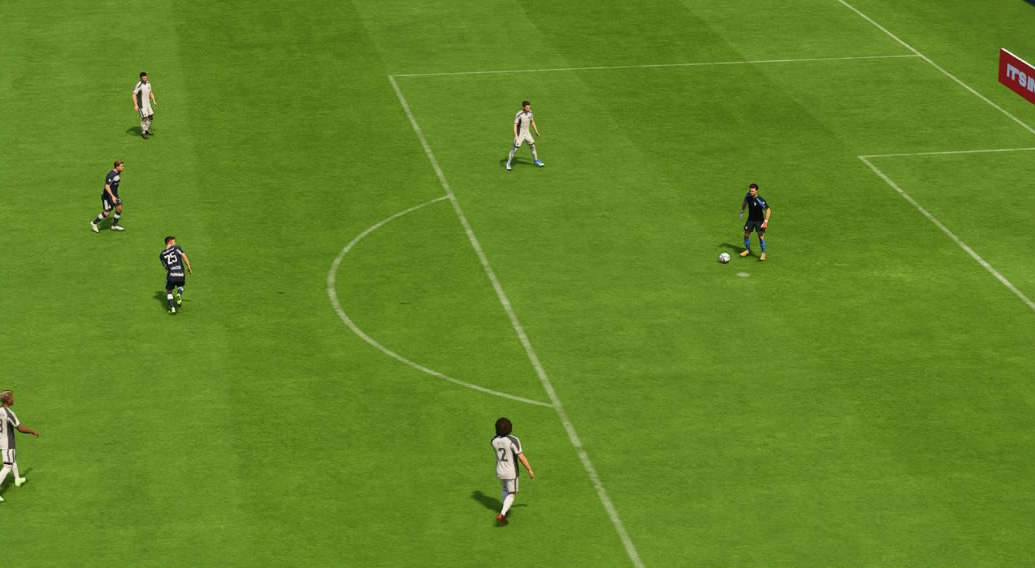
DYNAMIC
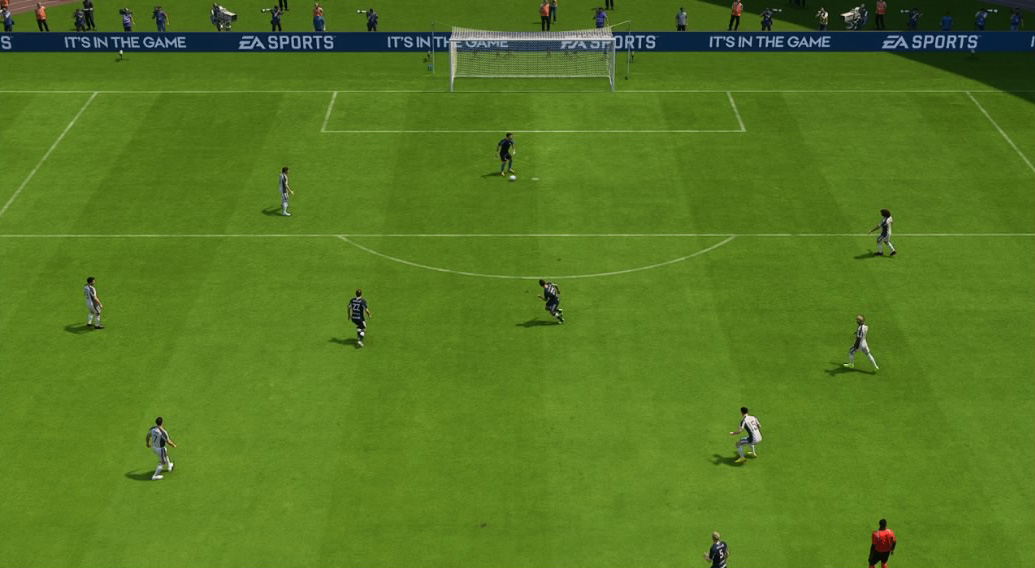
END TO END
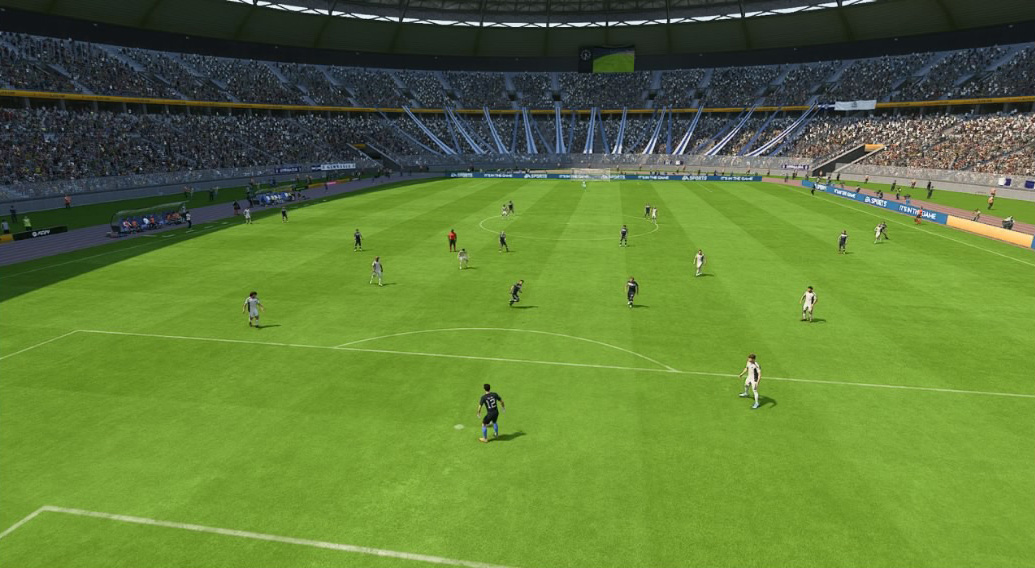
PRO
BROADCAST
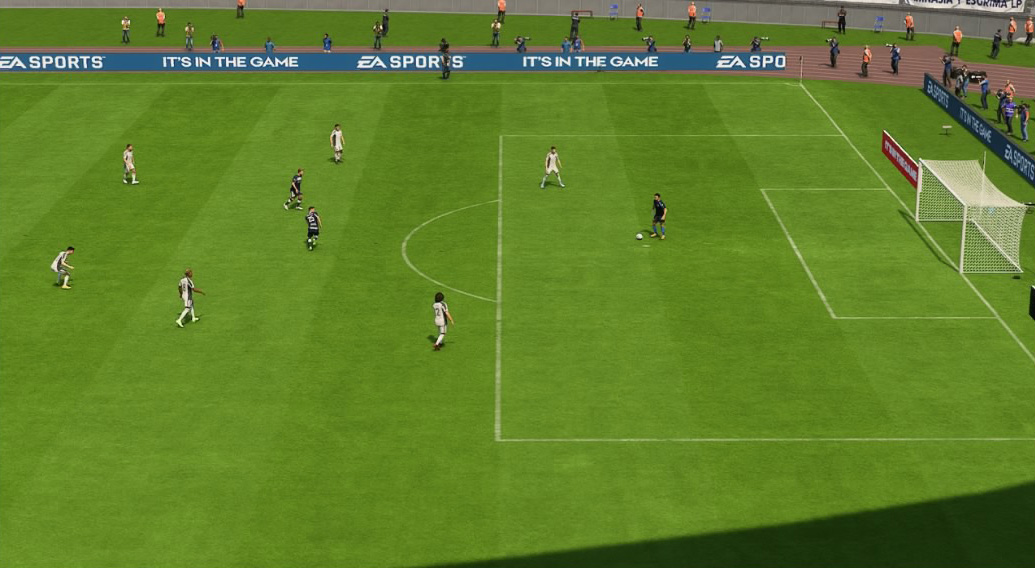
LEGACY
Camera Modes
- UT Competitive Camera: Enabled, Disabled – Uses a consistent competitive angle in Ultimate Team stadiums (falls back if a venue does not support it).
- Single Player Camera: Broadcast, Tele, Tele Broadcast, Co-op, Classic, Dynamic, End to End, Tactical, Pro, EA SPORTS GameCam.
- Multiplayer Camera: Same list as Single Player (separate setting for local multiplayer).
- Player Career Camera: Legacy/Tactical variants plus Tactical Focus for dynamic zoom on your pro.
- Clubs Camera: Broadcast, Tele, Tele Broadcast, Co-op, Classic, Dynamic, End to End, Tactical, Pro, EA SPORTS GameCam.
- Rush Camera: Rush Broadcast, Rush End to End, Rush Tactical, Rush Pro (small-sided views tuned for Rush).
- Be-A-Goalkeeper Camera: Pro, Broadcast, Tele Broadcast, Dynamic, End to End.
- Power Shot Zoom: On, Off – Optional dramatic zoom during Power Shots.
Recommended Setups
- Competitive / Online: Tele Broadcast (10–20 height, 0–10 zoom) or enable UT Competitive Camera for a standardized angle.
- Casual / Visibility: Co-op for a wider tactical view of the pitch.
- Player Career: Tactical Focus (dynamic zoom on your pro) or Pro for maximum immersion.
- Goalkeeper: Pro for a stable keeper-centric view.
- Rush: Rush Broadcast for clear lanes and quick restarts.
Custom Camera Settings
- Custom Camera Settings: Default, Custom.
- Height: 0–20 – Raises/lowers the vantage point (higher = more pitch coverage).
- Zoom: 0–20 – Brings the play closer or farther (lower = more space awareness).
- Far Side Focus: 0–10 – How much the camera shifts toward far-side play (not used by Pro/Dynamic/End to End).
- Ball Tracking Speed: 0–10 – Follow speed when the ball moves (not used by Pro/Dynamic/End to End).
- Penalty Area Zoom: 0–10 – Extra zoom when attacking in the box (not used by Pro/Dynamic/End to End).
- Pro Camera Zoom: 0–20 – Zoom level for Pro camera specifically.
- Pro Camera Speed: 0–20 – Tracking speed for Pro camera.
- Pro Camera Swing: 0–20 – Lateral swing/intensity for Pro camera motion.
- Power Shot Zoom: On, Off – Cinematic zoom for Power Shots.
Quick Tuning Tips
- If you lose track of depth on crosses, lower Zoom or raise Height for more area view.
- Defending high lines? Increase Height so you see runs in behind sooner.
- Struggling in the box? Add a little Penalty Area Zoom (2–4) for finishing clarity.
- Feeling motion-sick on Pro? Reduce Pro Camera Swing and Speed.
- For consistency across stadiums, enable UT Competitive Camera in Ultimate Team.
FAQ
What is the best camera for competitive play?
Most players prefer Tele Broadcast with moderate Height and low Zoom, or they enable UT Competitive Camera for consistency across stadiums.
Do custom camera settings apply to every mode?
Yes, but some online modes may enforce specific options (e.g., UT Competitive Camera) to keep matches fair and consistent.
Why don’t Far Side Focus or Penalty Area Zoom change anything on Pro?
Those options do not apply to Pro, Dynamic, or End to End. Use the Pro-specific Zoom/Speed/Swing to tune that view.
Will Power Shot Zoom affect gameplay speed or input timing?
No, it is purely visual. If you find it distracting, set Power Shot Zoom to Off.
Still have questions? Share them in the comments below, or visit our complete FC 26 FAQ section for more detailed answers.
Comments